Policy Overview
Policies are the core of device management in AndroidNexus. They define security settings, restrictions, app configurations, and device behavior for enrolled devices. Access policies by clicking Policies in the top navigation bar.
What is a Policy?
A policy is a configuration profile that controls how devices behave. When you apply a policy to a device (typically during enrollment via an onboarding token), AndroidNexus enforces those settings automatically.
The Policies Page
Filter Tabs
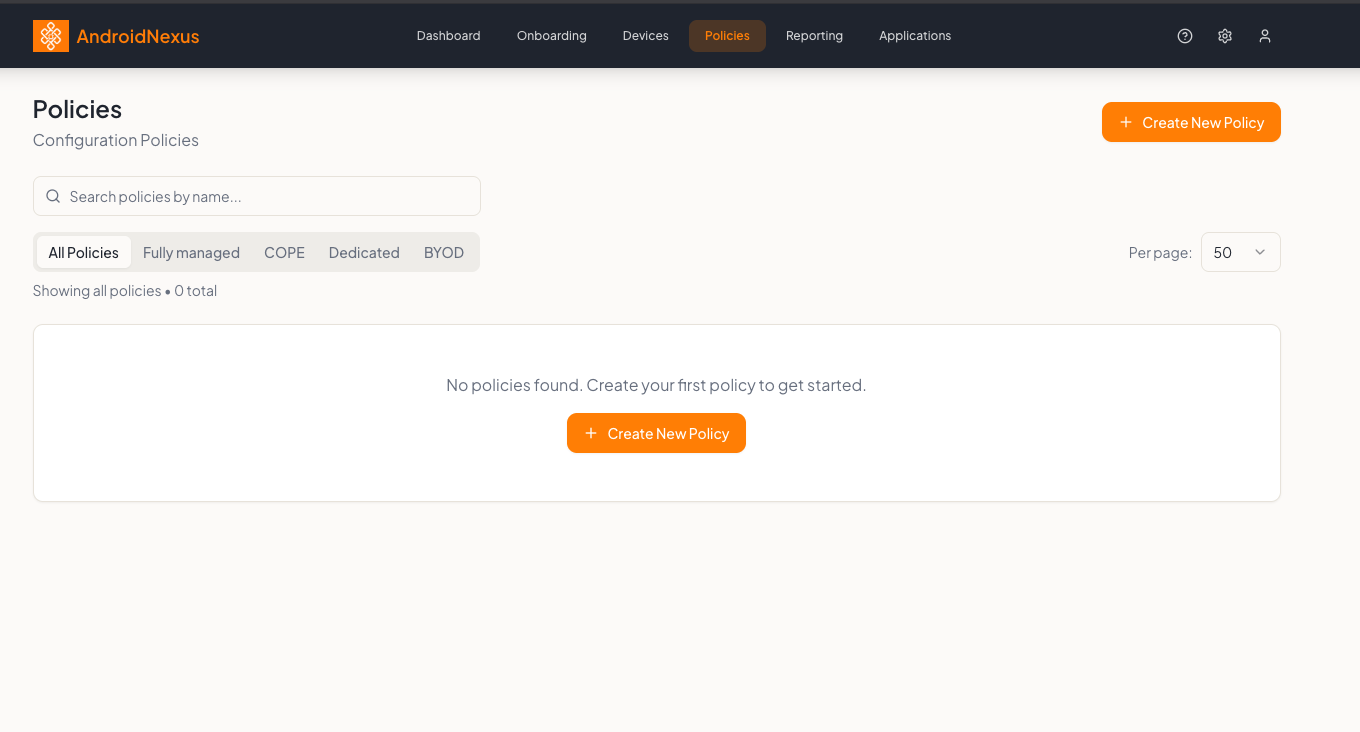
The top of the page includes filter tabs to quickly view policies by device mode:
| Tab | Description |
|---|---|
| All Policies | View all policies regardless of mode |
| Fully managed | Policies for company-owned, fully managed devices |
| COPE | Company-Owned, Personally-Enabled device policies |
| Dedicated | Policies for dedicated/kiosk devices |
| BYOD | Bring Your Own Device (work profile) policies |
A counter shows the total policies: "Showing all policies • X total"
Policy List
The main table displays all policies with these columns:
| Column | Description |
|---|---|
| Policy Name | Name of the policy |
| Description | Optional policy description |
| Mode | Device management mode (badge: Fully managed device, Dedicated device, etc.) |
| Version | Current version number (e.g., v17) |
| Assigned | Number of devices using this policy |
| Tags | Custom tags for organization |
| Last Updated | Date of last modification |
| Actions | Edit button to modify the policy |
Creating a New Policy
Click the Create New Policy button (orange button, top right) to create a new policy.
Create/Edit Policy Page
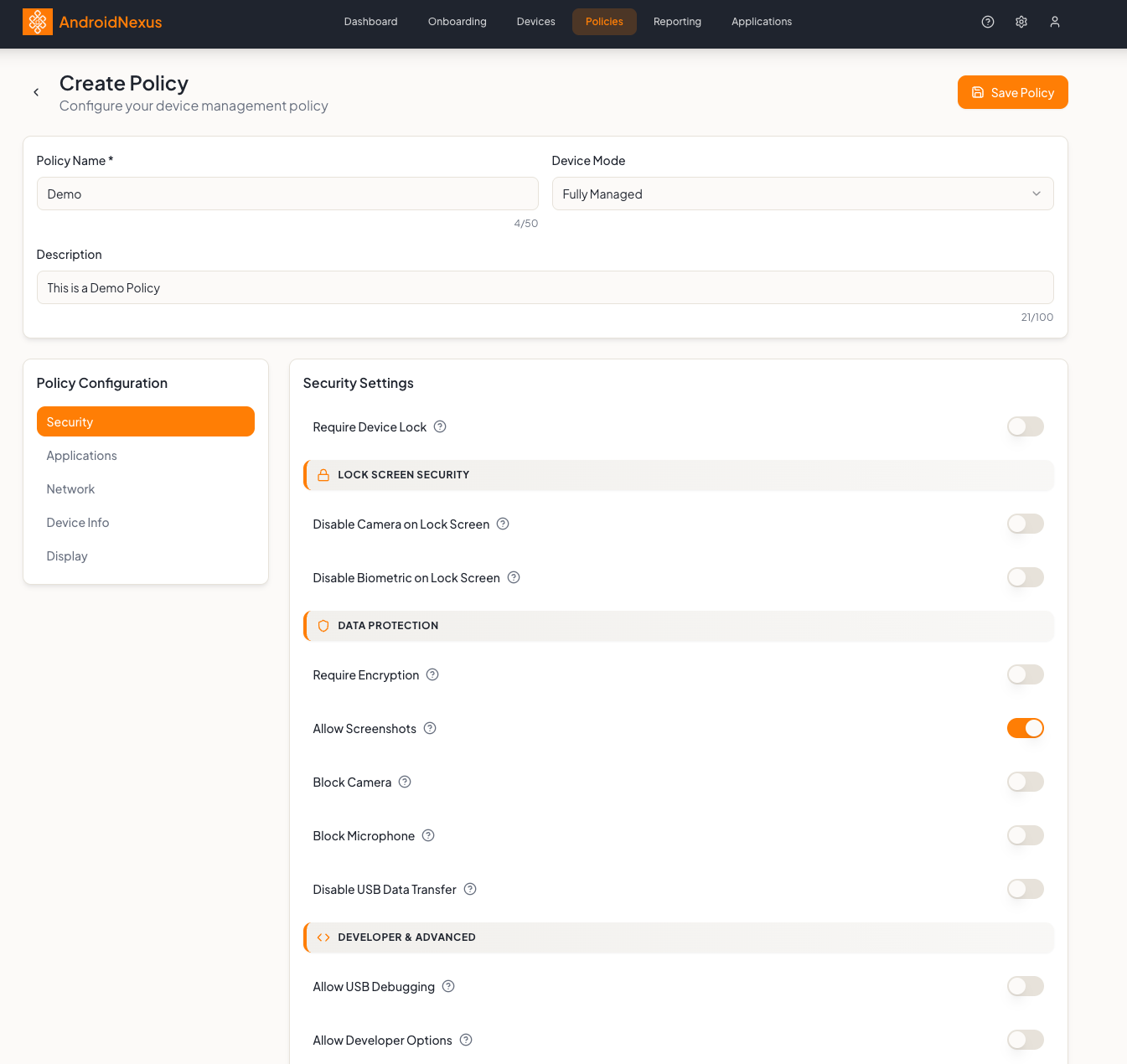
The policy editor is organized into header fields and configuration tabs.
Policy Header
| Field | Description |
|---|---|
| Policy Name | Required. A descriptive name for the policy |
| Device Mode | Dropdown to select: Personally Owned (BYOD), Fully Managed, Dedicated, COPE |
| Description | Optional description of the policy's purpose |
Action Buttons (Edit Mode)
When editing an existing policy:
| Button | Description |
|---|---|
| History | View policy version history |
| Assign Devices | Assign this policy to devices |
| Save Policy | Save changes to the policy |
Policy Configuration
The left sidebar contains configuration tabs:
- Security - Security and lock screen settings
- Applications - App deployment and restrictions
- Network - Wi-Fi, VPN, and network settings
- Device Info - Device information and identity settings
- Display - Screen and display configuration
- Work Profile - BYOD-specific settings (shown for BYOD policies)
Security Settings
The Security tab contains multiple sections organized with orange section headers. Each setting has a toggle switch and an info icon (?) for additional context.
Require Device Lock
A standalone toggle at the top to force users to set up a lock screen.
Lock Screen Security (Section)
| Setting | Description |
|---|---|
| Disable Camera on Lock Screen | Block camera access from lock screen |
| Disable Biometric on Lock Screen | Disable fingerprint/face unlock on lock screen |
Data Protection (Section)
| Setting | Description |
|---|---|
| Require Encryption | Force device storage encryption |
| Allow Screenshots | Toggle on/off for screenshot capability (enabled by default) |
| Block Camera | Completely disable the camera |
| Block Microphone | Disable microphone access |
| Disable USB Data Transfer | Block file transfers over USB |
Developer & Advanced (Section)
| Setting | Description |
|---|---|
| Allow USB Debugging | Enable/disable ADB debugging |
| Allow Developer Options | Show/hide developer settings |
| Block Factory Reset | Prevent users from factory resetting |
| Disable Safe Boot | Block booting into safe mode |
| Credential Manager Policy (Android 14+) | Dropdown with options: Unspecified (Default), and other credential handling modes |
Applications Settings
The Applications tab allows you to configure app deployment and restrictions.
App Installation Settings (Section)
| Setting | Description |
|---|---|
| Allow App Installation | Toggle to allow/block app installation |
| Allow Install from Unknown Sources | Toggle to allow sideloading APKs |
| System Update Policy | Dropdown: Automatic, Windowed, Postpone |
Kiosk Mode Settings (Section)
| Setting | Description |
|---|---|
| Enable Kiosk Mode | Toggle to lock device to specific apps |
Allowed Applications
A list of apps that will be installed or available on devices. The orange Add from Play Store button opens the Managed Google Play selector.
Each app in the list shows:
- App name and package name (e.g.,
com.whatsapp.w4b) - Status badge: Required (will be force-installed) or Setup Required (needs configuration)
- Action icons: Configure App (gear), Move to Blocked, Remove from Policy (X)
Blocked Applications
Enter package names to block (e.g., com.facebook.katana). Blocked apps will be disabled on devices, including preloaded system apps.
Device Modes Explained
Fully Managed Device
Complete control over the entire device:
- IT manages all apps and settings
- No personal usage intended
- Best for company-owned devices used only for work
Dedicated Device
Locked to specific use cases:
- Kiosk mode configurations
- Single-app or multi-app launcher
- Ideal for shared devices, point-of-sale, signage
COPE (Company-Owned, Personally-Enabled)
Company device with personal space:
- Work profile for business apps
- Personal profile for user apps
- IT controls work side, limited control over personal
BYOD (Bring Your Own Device)
Work profile on personal devices:
- Separate container for work apps
- Personal apps/data untouched by IT
- Work data is encrypted and isolated
Applying Policies
Policies are applied to devices in two ways:
During Enrollment
- Create an onboarding token in Onboarding
- Select a policy in the Policy Assignment section
- All devices enrolled with that token receive the policy
To Existing Devices
- Go to Devices
- Select devices using checkboxes
- Click Apply Policy
- Select the policy to apply
Policy Versioning
Each time you edit and save a policy, the version number increments (v1, v2, v3...). This helps track changes over time.
When you update a policy:
- The new version is automatically pushed to all assigned devices
- Devices sync the updated policy on their next check-in
- You can see the applied version in each device's detail view
Best Practices
- Use descriptive names - Name policies by purpose (e.g., "Sales Team Standard", "Warehouse Kiosk")
- Start restrictive, then relax - Easier to loosen restrictions than add them later
- Test with a pilot device - Apply new policies to test devices first
- Document policy purposes - Use the description field to explain intent
- Group similar devices - Create policies for device categories, not individual devices
- Review regularly - Audit security settings quarterly
Next Steps
- Creating Your First Policy - Step-by-step guide
- Application Deployment - Add apps to policies
- Device Enrollment - Apply policies during enrollment