Device Management Overview
AndroidNexus provides comprehensive tools to manage your entire Android device fleet from a single console. Access device management by clicking Devices in the top navigation bar.
The Devices Page
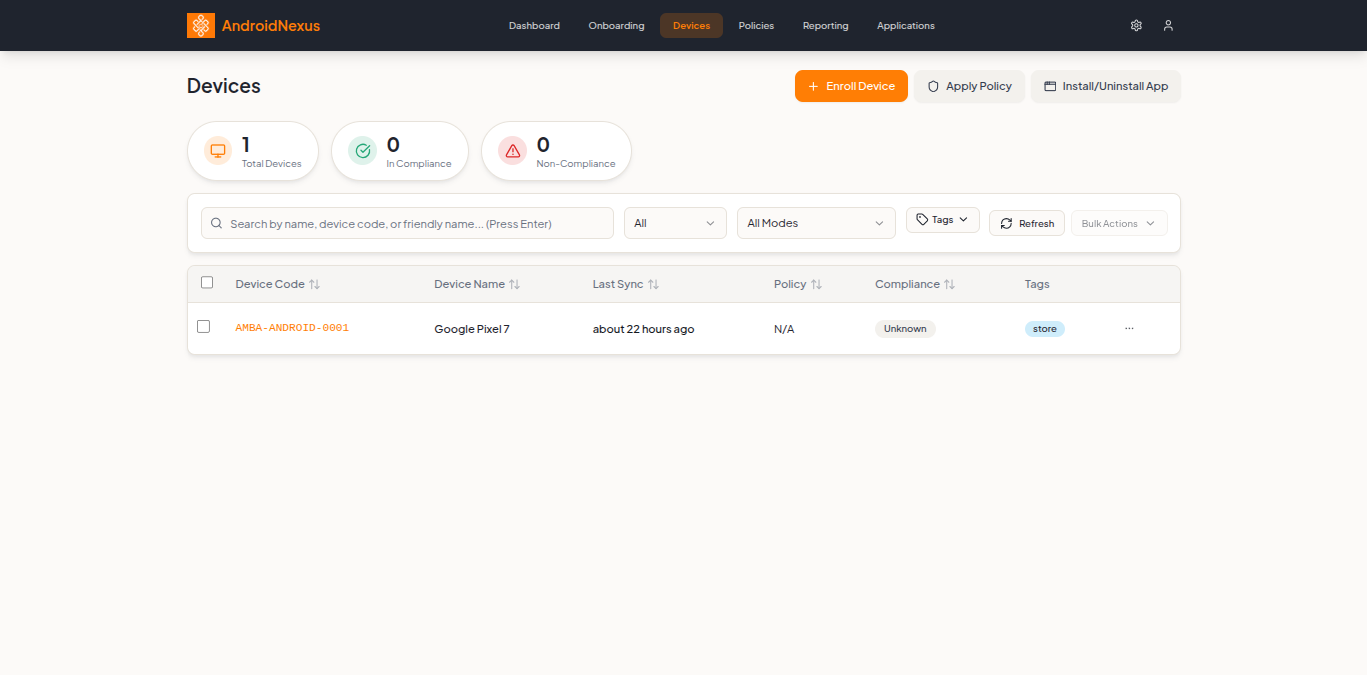
The Devices page is your central hub for monitoring and managing all enrolled devices.
Summary Cards
At the top of the page, three summary cards show fleet health at a glance:
| Card | Description |
|---|---|
| Total Devices | Count of all enrolled devices |
| In Compliance | Devices meeting all policy requirements |
| Non-Compliance | Devices with policy violations requiring attention |
Action Buttons
The top-right of the page provides quick access to common tasks:
- Enroll Device - Start the device enrollment process
- Apply Policy - Apply a policy to selected devices
- Install/Uninstall App - Manage applications (opens Applications page)
Device List
The main table displays all enrolled devices with key information:
| Column | Description |
|---|---|
| Device Code | Unique device identifier (e.g., ADMR-AND-0001) |
| Device Name | Friendly name and device model |
| Last Sync | Time since last check-in (e.g., "11 days ago") |
| Policy | Currently applied policy name |
| Compliance | Compliance status (badge: green for compliant, red for non-compliant) |
| Tags | Custom tags for organization |
Filtering and Search
Find devices quickly using the toolbar above the device list:
- Search - Search by name, device code, or friendly name (press Enter to search)
- Status - Filter by device status (dropdown)
- Mode - Filter by management mode (Fully Managed, Dedicated, BYOD, etc.)
- Tags - Filter by custom tags
- Refresh - Reload the device list
Bulk Actions
Select multiple devices using checkboxes to perform bulk operations:
- Select devices by clicking the checkboxes
- Click Bulk Actions (enables when devices are selected)
- Choose your action
Device Details
Click any device row to open the detailed device view. The detail page includes a header bar and multiple tabs for different aspects of the device.

Device Header
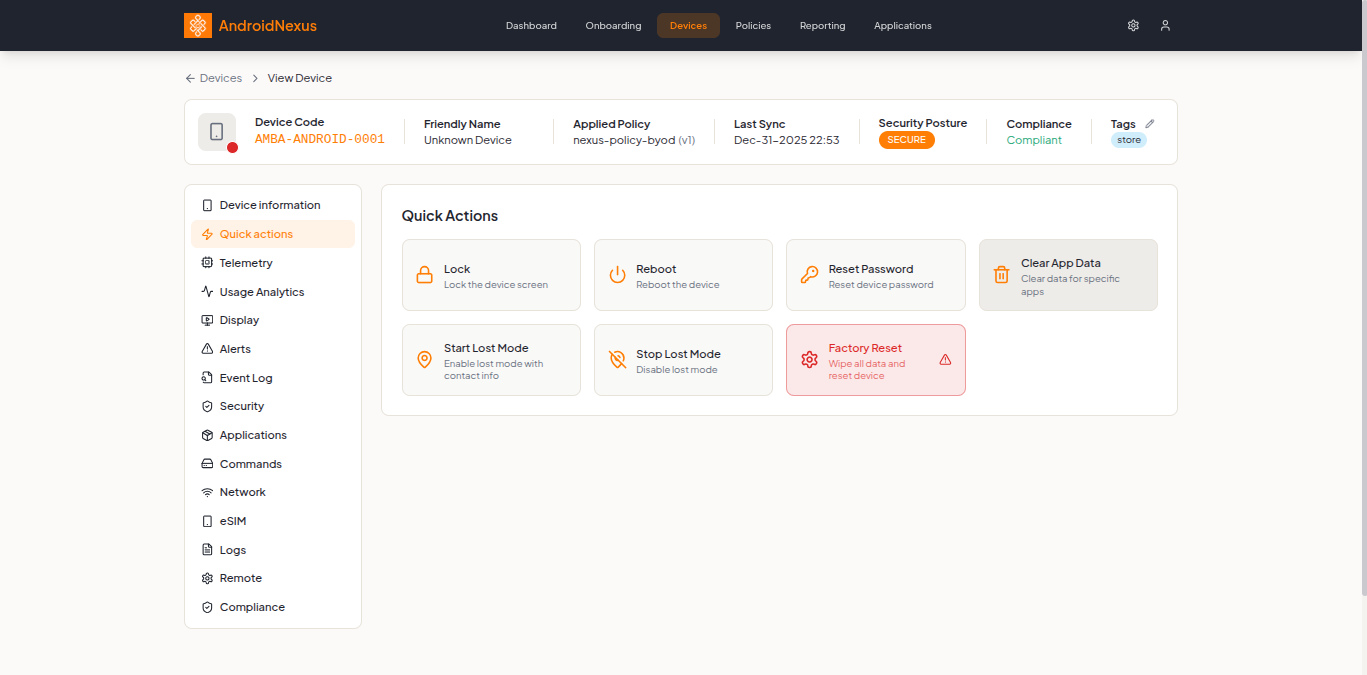
The header displays key device information:
- Device Code - Unique identifier with status indicator
- Friendly Name - Editable device name (click pencil icon to edit)
- Applied Policy - Current policy with version number
- Last Sync - Last communication timestamp
- Security Posture - Security status badge (SECURE, AT_RISK, etc.)
- Compliance - Compliance status
- Tags - Custom tags (click pencil icon to edit)
Device Information Tab
The default tab shows comprehensive device details in expandable sections:
General Information
- Storage - Storage usage with visual gauge (shows "Work Profile Storage" for BYOD devices, "Internal Storage" for fully managed)
- Memory Information - Total RAM, average usage (24h), free memory
- Battery Information - Battery level and charging status (note: battery data may be unavailable for Work Profile/BYOD devices)
Hardware Information
| Field | Example |
|---|---|
| Brand | |
| Processor | bluejay |
| Manufacturer | |
| Model | Pixel 6a |
| Serial number | 27081JEGR23261 |
| Android version | Android 16 |
| Security patch level | (date) |
| Enrollment time | Dec-17-2025 22:51 |
Management Information
- Management Mode - Fully Managed, Work Profile, Dedicated, etc.
- Ownership - Company Owned or Personal
- API Level - Android API level
- MDM Source - Management source (amapi)
- Applied Policy - Current policy name and version
- Last Policy Sync - When policy was last applied
Security Overview
Shows overall security status and any compliance issues.
Non-Compliance Issues
Lists specific policy violations that need attention, including:
- Password policy violations
- Missing required applications
- Configuration issues
Quick Actions Tab
Execute remote commands on the device:
| Action | Description |
|---|---|
| Lock | Lock the device screen immediately |
| Reboot | Restart the device |
| Reset Password | Reset the device password |
| Clear App Data | Clear data for specific apps |
| Start Lost Mode | Enable lost mode with contact information |
| Stop Lost Mode | Disable lost mode |
| Factory Reset | Wipe all data and reset device (destructive) |
Factory Reset will erase all data on the device. This action cannot be undone. The button is highlighted in red to indicate this is a destructive action.
All Device Detail Tabs
The left sidebar contains all available tabs (the active tab is highlighted in orange):
| Tab | Description |
|---|---|
| Device Information | Default view with hardware, management, and security info |
| Quick Actions | Remote commands (Lock, Reboot, Reset Password, etc.) |
| Telemetry | Real-time device metrics and statistics |
| Usage Analytics | App usage and device usage patterns |
| Display | Screen and display configuration (fully managed devices only) |
| Alerts | Device-specific alerts and notifications |
| Event Log | Complete history of device events |
| Security | Detailed security settings and status |
| Applications | List of installed applications with versions |
| Commands | Command history and status |
| Network | Network configuration and connectivity (fully managed devices only) |
| eSIM | eSIM management (fully managed devices only) |
| Logs | System logs from the device (coming soon) |
| Remote | Remote access capabilities (coming soon) |
| Compliance | Detailed compliance status and violations |
Some tabs like Display, Network, and eSIM show limited information for Work Profile (BYOD) devices due to Android privacy restrictions.
Working with Device Tags
Tags help organize and filter devices:
Adding Tags
- Open the device detail view
- Click the pencil icon next to Tags
- Add or remove tags
- Save changes
Using Tags for Filtering
- On the Devices page, click the Tags filter button
- Select one or more tags
- The device list filters to show only matching devices
Best Practices
- Use meaningful friendly names - Set descriptive names like "Sales - John's Phone" instead of generic model names
- Apply consistent tags - Use tags like department names, locations, or device purposes
- Monitor compliance regularly - Check the Non-Compliance count daily
- Review device events - Check the Event Log tab when troubleshooting issues
- Use appropriate actions - Reserve Factory Reset for end-of-life or lost devices
Next Steps
- Device Enrollment - Learn about enrollment methods
- Policy Configuration - Create and manage policies
- Reporting - Generate fleet reports